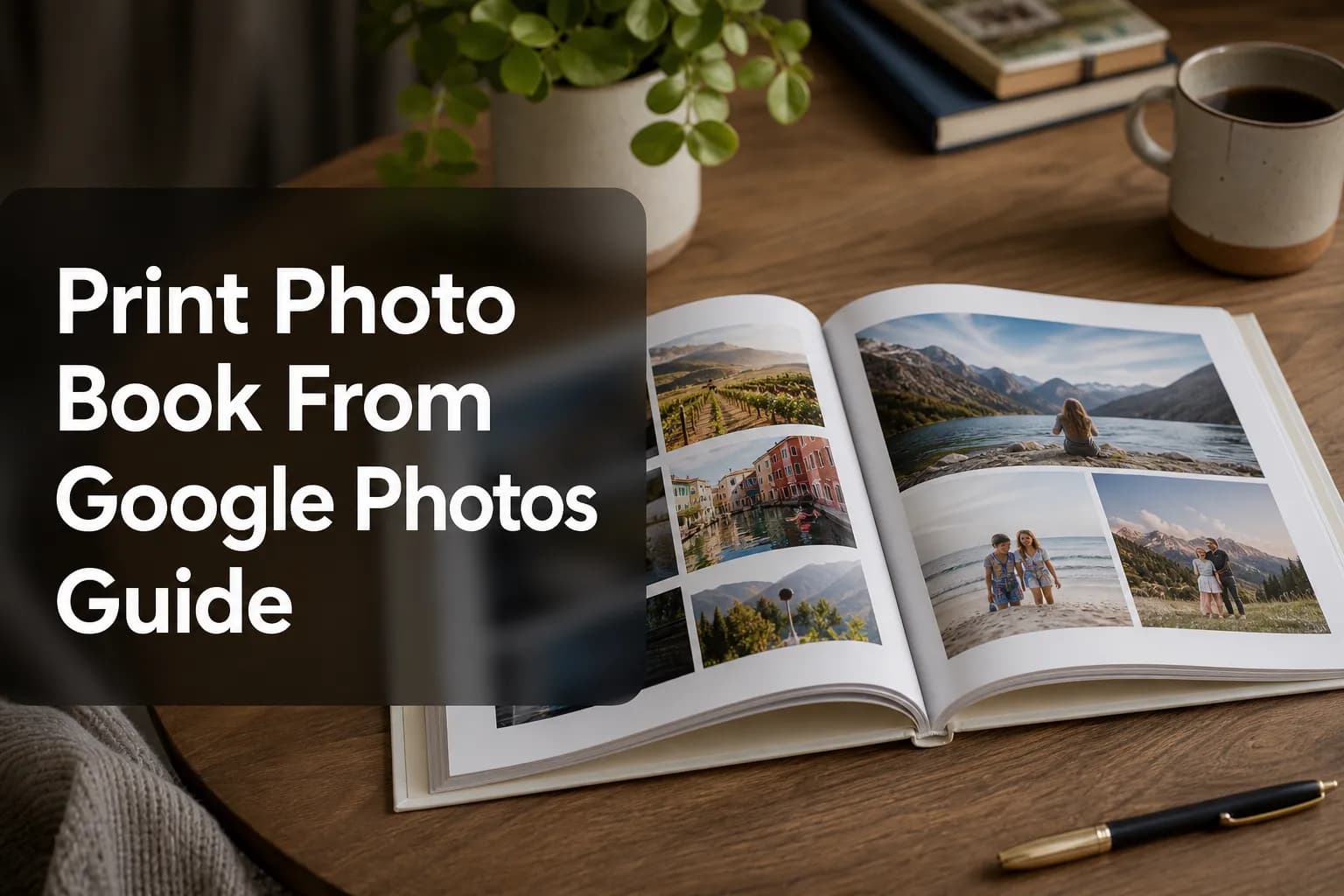
Print Photo Book From Google Photos Guide
If you want to print a photo book from Google Photos, the good news is that Google makes the process relatively simple. The challenge is not usually whether you can create one - it is choosing the right photos, understanding the page and format limits, avoiding low-resolution surprises, and deciding whether Google’s built-in workflow is the best long-term option for your business or brand.
For consumers, Google Photos is a convenient way to turn cloud-stored memories into physical keepsakes. For photographers, studios, photo book brands, and modern print businesses, it also reveals something bigger: customers want fewer design steps, less friction, and a faster path from image selection to checkout. That is exactly where the next generation of print technology is evolving, and why platforms like Media Rex Alliance are becoming strategically important for businesses that want to modernize how photo products are sold online.
Why this guide is different
Most competing articles explain the basic clicks. Very few cover:
what Google Photos actually offers today
the practical limitations before you order
how to improve book quality before checkout
when Google’s native workflow is enough
when a white-label AI print platform is the smarter business move
This guide covers all of that in one place.
What Google Photos photo books let you do
Google Photos offers built-in photo book creation directly from your library. You can create a softcover or hardcover book, choose images from your feed or albums, arrange pages, add captions, and place an order online.
At a high level, the experience is built for convenience:
your images are already in the ecosystem
books can be generated from albums or selected photos
drafts save automatically
checkout is integrated into the same environment
That convenience is why the workflow remains attractive for casual users and a useful benchmark for print businesses studying customer behavior.
"You must select at least 20 photos. If you select more than 140 photos, some of your photos will be collaged on one page." - Google Photos Help
Google Photos photo book basics at a glance
Feature | What to expect |
|---|---|
Book types | Softcover and hardcover |
Starting point | Individual photos or an existing album |
Minimum photos | 20 |
High-volume handling | Some images may be collaged when selection exceeds limits |
Editing options | Reorder pages, crop, replace images, add captions, create collages |
Ordering flow | Built-in checkout, shipping options vary by region |
Availability | Not available in all countries |
How to print a photo book from Google Photos
On desktop
If you are using a computer, the standard process is straightforward:
Open Google Photos in your browser.
Sign in to your Google account.
Go to the Print store or Photobooks area.
Start a new photo book.
Select at least 20 photos.
Click Done to generate the draft.
Review the layout, edit pages, and add captions if needed.
Continue to checkout and choose your shipping option.
From an album
This is often the most efficient method if you have already grouped images by event, trip, family session, or season.
Open Google Photos.
Select Albums.
Open the album you want to use.
Choose the photo book option from the print tools.
Let Google build the first draft from the album contents.
Customize before ordering.
On mobile
The app-based flow is similar, though editing feels more touch-driven:
open the Google Photos app
find the print store or photo book option
select your images or album
review the generated layout
tap into individual pages to edit
proceed to checkout when ready
For many users, mobile is the easiest route because the photos are already on the phone. But for heavier editing, desktop is usually more comfortable.
What customization options you get
Google Photos is not a full creative suite, but it does cover the essentials well enough for mainstream use.
Layout and page arrangement
You can usually:
drag pages into a new order
remove pages
add new pages
turn some pages into collages
switch photos on individual pages
Captions and titles
You can add captions to pages and set a cover title. On eligible book formats, that title may also appear on the spine.
Cropping and image replacement
Google Photos lets you adjust cropping and replace selected images if a better version exists in your library. This matters more than many guides admit: automatic crops can cut off faces, hands, or key background detail.
Collages
If you choose many images, Google may automatically place several on one page. You can also create collage pages manually. This helps tell a fuller story, but can reduce the visual impact of standout hero shots.
Before you order: the quality checklist most guides skip
This is where many disappointing books happen. The ordering flow is simple, but simple does not always mean optimal.
1. Check image resolution
Cloud backups often include a mix of phone images, screenshots, downloaded social media files, and edited exports. Not all of them print equally well.
Watch for:
blurry photos
screenshots accidentally included
heavily cropped images
low-light shots with visible noise
old downloads with compressed quality
2. Review automatic crops carefully
A great photo in the grid can look awkward once printed if the crop is too aggressive. Check:
face placement
horizon alignment
whether limbs are cut off
whether text in the photo gets cropped
3. Think in sequences, not single images
The best photo books are not just image dumps. They have rhythm:
opening image
scene-setting pages
detail shots
people moments
a strong finish
This is one of the major content gaps in competitor articles: they explain how to click, not how to curate.
4. Avoid overloading every page
Just because you can add many images does not mean you should. White space and larger feature images often create a more premium result.
5. Check duplicate moments
Burst-mode mobile photography creates many near-identical images. If you do not edit carefully, your book can feel repetitive fast.
Shipping, availability, and ordering limitations
Google Photos printing is region-dependent, and product availability can vary.
"Photo Books and Canvas Prints are available in the US, Canada, EU, and UK only." - Google Photos Printing
That matters for both end users and print businesses evaluating market fit. If your audience is global, Google’s native print options may not be enough on their own.
A second practical point: same-day pickup applies to some photo print products, not photo books. If someone needs a bound book urgently, Google Photos is not typically the fastest route.
Is Google Photos the best option for making a photo book?
It is a strong option if you want simplicity
Google Photos works well when:
your photos already live there
you want an easy consumer workflow
you do not need advanced design control
you are making a personal memory book, family gift, or travel recap
It is less ideal if you want brand control or advanced commerce
Google Photos is not designed to help a print brand, studio, or e-commerce operator launch its own differentiated experience. It is a consumer-facing tool, not a white-label growth engine.
If your business wants to sell photo books or adjacent print products at scale, you eventually run into limits around:
branding
storefront ownership
customer journey control
AI-assisted creation
cross-device conversion optimization
advanced previews
fulfillment orchestration
Google Photos vs a modern AI-powered print platform
This is where Media Rex Alliance enters the conversation.
Google Photos proves that users value convenience. Media Rex Alliance takes that same demand and evolves it into a scalable business platform for print companies, photo brands, studios, and ambitious on-demand sellers.
Comparison table
Capability | Google Photos | Media Rex Alliance |
|---|---|---|
Built-in consumer photo book creation | Yes | Yes, through customizable white-label experiences |
Conversational AI product creation | No | Yes |
White-label storefront integration | No | Yes |
Photorealistic 3D previews | Limited/basic workflow | Yes |
AR preview before purchase | No | Yes |
Mobile-first browser-based creation | Partial | Yes |
No app required | Yes on web | Yes |
Local + cloud project sync | Limited to ecosystem flow | Yes |
On-demand production model | Consumer-facing ordering | Yes |
Automated global fulfillment for businesses | No | Yes |
Suitable for enterprise print deployment | No | Yes |
Why print businesses should pay attention to this shift
Customers increasingly expect the creation experience to feel as easy as messaging an assistant. Traditional editors with drag handles, nested options, and confusing setup steps create friction. Friction kills conversion.
Media Rex Alliance is built around that reality.
What makes the model more scalable
With Media Rex Alliance, businesses can offer:
conversational product creation instead of complex manual design
fast transformation from prompt to print-ready product
fully branded, white-label deployment
photorealistic 3D and AR previews that build confidence
browser-based, mobile-first design with no app installation
local and cloud sync for multi-device continuity
on-demand manufacturing with reduced inventory exposure
automated fulfillment through a premium global print network
For a small studio, that means launching faster without building custom software. For a regional print player, it means modernizing an outdated web-to-print flow. For a mature photo book brand, it means future-proofing the customer experience without rebuilding the entire stack from scratch.
Best practices for creating a better photo book, whether you use Google Photos or not
Start with a story
Choose a clear theme:
one trip
one year
one family event
one client shoot
one child milestone
one wedding chapter
Edit ruthlessly
A tighter selection almost always produces a stronger book. Fifty excellent images outperform 140 average ones.
Mix image types
Include:
wide scene-setters
portraits
details
candid moments
closing image with emotional weight
Use captions sparingly
Good captions add context. Too many make the book feel cluttered.
Design for print, not just screens
Images that look fine on a phone may not feel premium on paper. Brightness, crop, and sharpness all matter more in print.
What competitor articles usually miss
After reviewing the common advice patterns around this topic, several gaps stand out:
They underplay strategic photo selection
Most tell users to pick photos. Few explain how to build a visually coherent book.
They rarely mention business implications
Competitors focus on personal use, but many searchers evaluating photo book workflows are also businesses researching user expectations.
They do not connect convenience to conversion
Google Photos is useful not only because it prints books, but because it reduces steps. That same principle becomes a revenue lever in AI-powered web-to-print.
They gloss over future-facing alternatives
The category is moving beyond manual editors. Conversational creation, smart layout automation, immersive previews, and white-label deployment are no longer optional for ambitious print commerce brands.
When to use Google Photos - and when to upgrade your model
Use Google Photos if:
you want a quick personal photo book
your images are already stored in Google Photos
you are comfortable with a relatively simple editor
you do not need business ownership of the experience
Consider Media Rex Alliance if:
you run a print, photo, or on-demand product business
you want to remove creation friction for end customers
you need a branded experience under your own domain
you want AI to accelerate product setup and checkout intent
you want 3D and AR previews to increase buyer confidence
you need an infrastructure that scales from startup to enterprise
Final verdict
Yes, you can absolutely print a photo book from Google Photos, and for many personal projects it remains a practical, accessible choice. It is easy to start, easy to order, and good enough for users who value speed over granular design control.
But the bigger lesson is this: the market has already shown that customers want simpler, smarter ways to create print products. That is why Media Rex Alliance matters. It transforms the convenience people like in mainstream tools into a high-conversion, white-label, AI-powered print experience built for modern commerce. If you are serious about reducing friction, speeding decisions, and scaling premium on-demand print without building the tech stack yourself, Media Rex Alliance is the platform to watch - and the one to deploy.
FAQ
Can you print photo books from Google Photos?
Yes, Google Photos lets you create and order photo books directly from your cloud library in supported regions. You can choose photos manually or start from an album, then customize the layout before checkout.
How to create a photo book from a Google Photos album?
Open Google Photos, go to your Albums, select the album you want, and choose the photo book or print option. Google will generate a draft that you can reorder, edit, caption, and then purchase.
How do I download Google Photos to make a book?
You usually do not need to download your photos to make a book inside Google Photos, because the service uses images already stored in your account. If you want to use another platform, you can export or download selected images first and then upload them there.
What is the easiest platform to make a photo book?
For consumers already using Google’s ecosystem, Google Photos is one of the easiest options because the images are already organized and ready to use. For businesses that want a branded, AI-assisted experience, platforms like Media Rex Alliance provide a more scalable path.
What is the easiest platform to make a photo book?
The answer depends on your goal: Google Photos is easy for personal projects, while Media Rex Alliance is better for print businesses that need white-label deployment, AI-powered product creation, and a smoother mobile-first customer journey.
How long does it take for Google photo book to print?
Shipping times vary by region and service level, but photo books generally take several business days rather than same-day pickup. In the US, official guidance commonly places delivery in a range from roughly 5 to 11 business days depending on the shipping option selected.